MonStr Cloud — a new standard for construction control
A complete platform for quality control and project management in construction. Built for small construction companies, repair crews, site supervision, private housing, contractors and health-and-safety specialists.
Signing up takes about 5 minutes. No contracts, no lengthy approvals.
Who MonStr Cloud is for
The cloud edition is built for teams that need a working tool today, not a six-month rollout project. You record defects, run handovers and manage your team — with no servers or administrators on your side.
Small construction companies
Repair and installation crews
Site supervision and quality control
Private housing and self-builds
Contractors and subcontractors
Health and safety specialists
Core features
Six areas that cover an engineer’s day-to-day work on site.
Planning the engineer’s work
Schedule site visits and get reminders about upcoming handovers.
Checklists for control
Ready-made and customisable handover lists with photo evidence and automatic completion tracking.
Working with drawings
Upload, annotate and review drawing changes right in the browser, with no extra software.
Handover and reports
Call an engineer to a handover electronically and generate the final reports automatically.
Recording snags
Flag quality issues, safety breaches and deviations from the design, pinned to the exact spot on the drawing.
Mobile app
iOS and Android apps let you work on the site itself, at any time.
A new architecture built for simplicity and speed
01
An interface anyone can use
Whatever the organisation or the level of experience, people get started easily thanks to a clear, well-considered interface.
02
One account for several projects
A single account covers different projects and legal entities, with one-click switching between them.
03
A fast start with no contracts
Signing up takes five minutes and needs no contract. That removes the bureaucracy and gets you working sooner.
What it looks like in use
Five minutes to sign up — and then this is what you work with.
Drawings
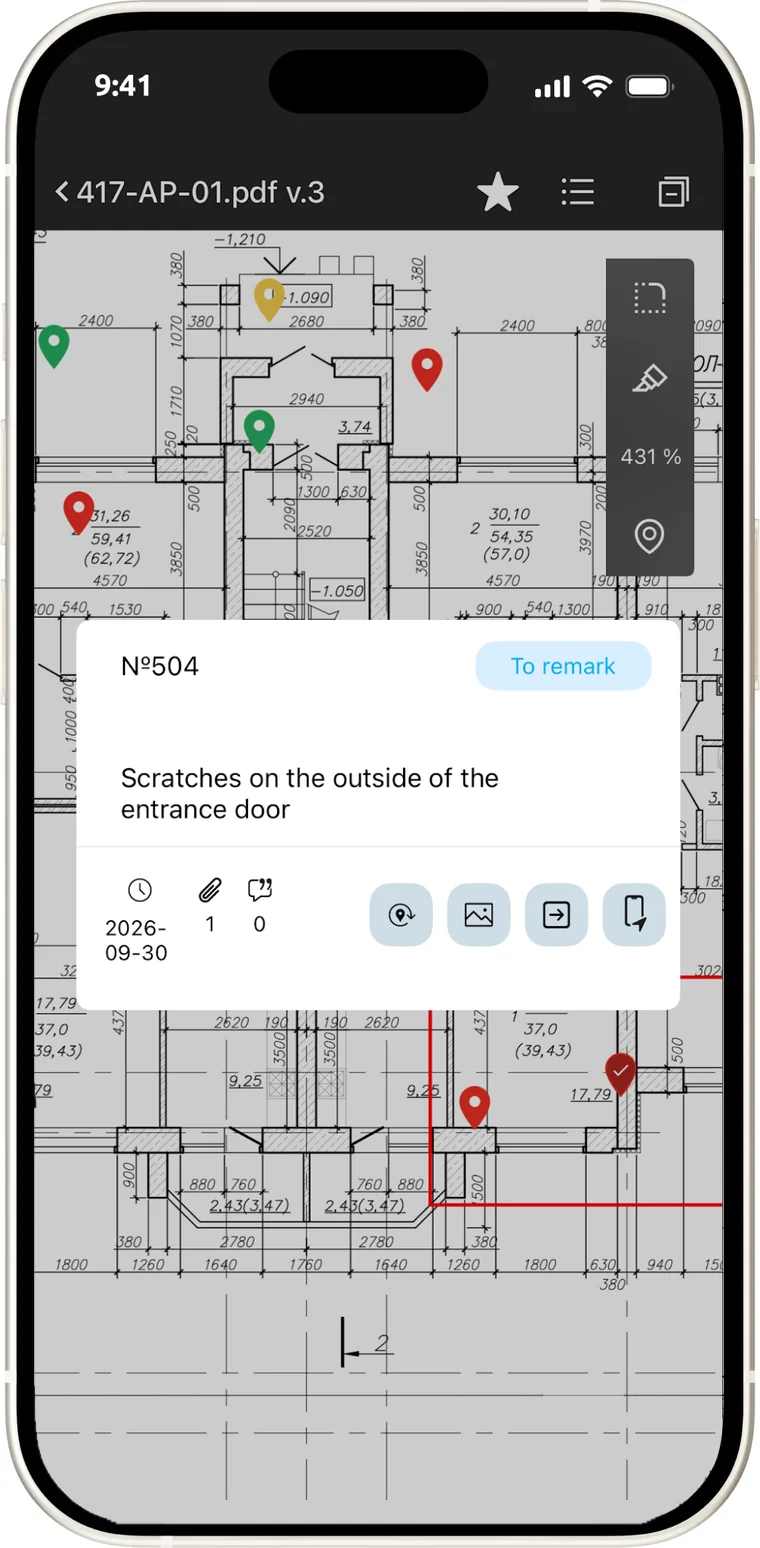
Snags and statuses right on the plan
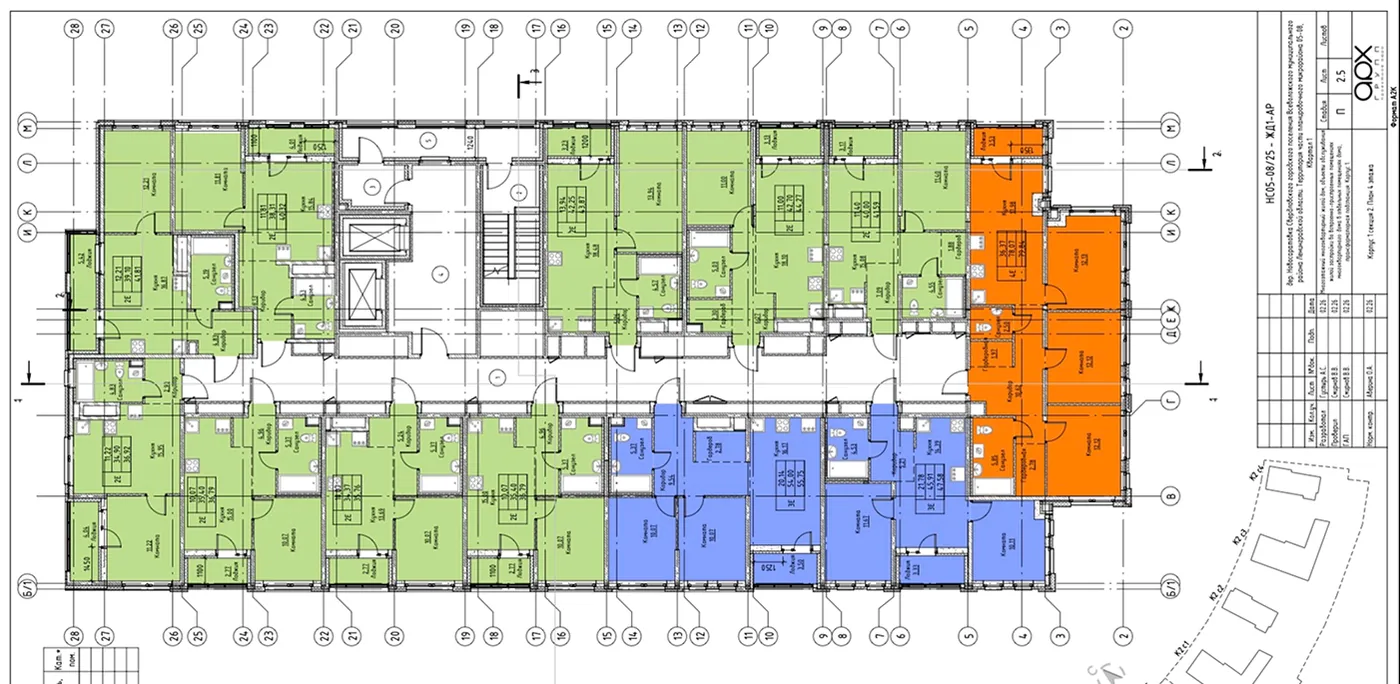
The drawing is uploaded and becomes the working surface. A snag is placed at a point, and the status of each unit is visible by colour — no need to reconcile a list against a plan in your head.
Upload PDF, DWG and images
View and zoom in the browser
Colour-coded unit statuses
Version comparison with differences highlighted
Handover
Checklists are filled in on site
Ready templates for apartment, roofing, building services and safety handovers. Filled in from a phone during the walk, with the completion percentage calculated automatically.
Ready-made and custom templates
Photo evidence inside a checklist item
Automatic completion scoring
Final report as a PDF
Panoramas
The whole site without a visit
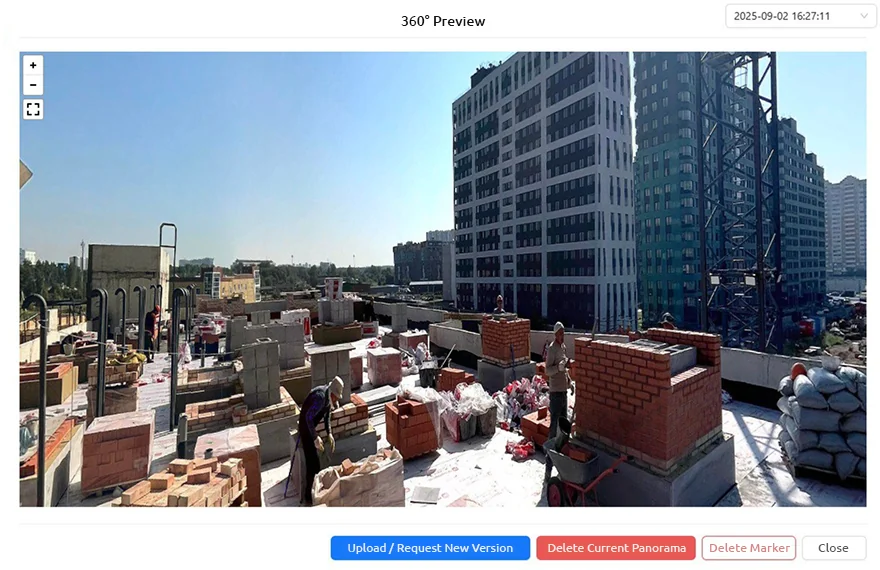
360° panoramas are pinned to points on the drawing. Rotate them, move between shots, leave snags and compare the state before and after.
Pinned to points on the plan
Snags directly on the panorama
Before and after comparison
Distance measurement
What you get inside
From setting up a legal entity to 360° panoramas of the site.
Managing legal entities
01
The platform assigns every organisation a unique ID. Switch between entities in one click and manage projects centrally. A new organisation is created with its name, registration number (checked for uniqueness) and director details.
Creating projects
02
A new site is created instantly: name and a unique code are required, with address, dates, the responsible specialist and a project cover optional. Every project is tied to a legal entity, which keeps the data separated.
Drawings and site structure
03
Upload drawings as PDF, DWG or images, then view and zoom them in the browser with no extra software. Split the project into stages, sections and types of work using structured folders.
Drawing versions
04
Every new version of a drawing is stored, and snags stay tied to a specific revision. Versions can be compared with differences highlighted, and snags filtered by the current revision.
Team and roles
05
Add colleagues by email or accept their join requests. Roles: creator with full access, owner who manages snags and assigns work, and observer with view-only rights.
Snags on the drawing
06
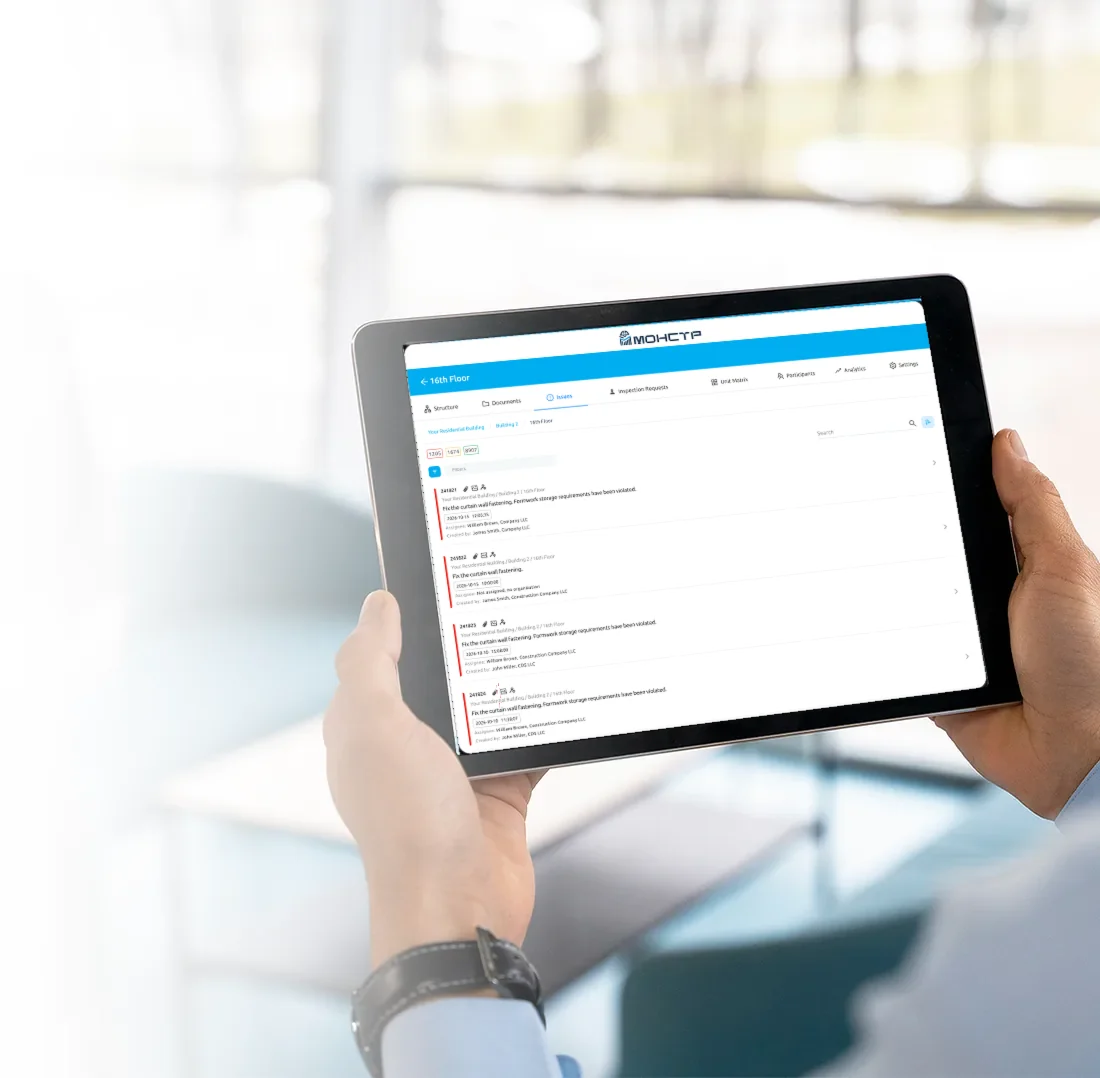
Pick a point on the drawing, set the type of issue — from quality to safety — attach photos and assign owners with deadlines. The statuses Open, In progress, Done and Closed show the progress.
Handover checklists
07
Ready templates for apartment, roofing, building services and safety handovers. Build your own checklists or edit existing ones. They are filled in from a phone, with photo evidence and automatic completion percentages.
Calling an engineer and issuing reports
08
Pick the site, set the date, time and type of handover, add participants and a priority. The system notifies the engineer and everyone involved, then generates the report as a PDF automatically.
360° panoramas
09
Panoramas are pinned to points on the drawing with camera icons. Rotate the image, move between panoramas, leave snags on specific points and compare the before and after state. Distances can be measured and notes left on the panorama itself.
Mobile app
MonStr Cloud stays with you on site
Walkthroughs, photo evidence and checklists happen where the work is — from a phone or a tablet. Sign-in, password recovery and registration all sit on one screen.
Apps for iOS and Android
Official apps in the App Store and Google Play. Everything syncs with the web version automatically.
Photo evidence during the walkthrough
The snag, the photo and the point on the drawing are captured on the spot — no notebook to retype back at the office.
One account across every device
Projects, legal entities and roles are the same in the browser and in the app, one click apart.
Run it in the cloud or on your own server.
How to get access
Four steps from signing up to working for real.
1
Sign up
Enter your name, surname and email, and set a password of 8+ characters with letters, digits and symbols. The email is confirmed with a code.
2
Choose demo access
After signing up, activate 14-day demo access or go straight to buying a licence.
3
Moderator review
The demo request goes to an administrator to identify and confirm the user.
4
Access activated
Once approved, demo access opens the full feature set with limits on scale.
What demo access includes
The demo opens the full feature set but caps the number of projects, users and storage — so you can evaluate the platform while resources stay under control.
* Including the account owner. Hosting inside the UAE is available on request.
14 daysDuration
up to 3Projects
1Legal entities
2*Users
200 MBStorage
yesWatermarks
How far people get on their own
The share of users who reach each next step. The smaller the drop between steps, the clearer the interface.
The flow is arranged so that every stage of a construction project stays transparent and in sequence.
MonStr internal data, 2024
User registration100%
Adding a legal entity90%
Creating a project85%
Assigning people80%
Raising snags75%
Work handover70%
A simple start
Four moves and the site is already under control.
1
Create an account
Name, email and password, confirmed by a code from the letter. No contract to sign.
2
Upload the drawings
PDF, DWG or images. Sort them into stages, sections and types of work.
3
Invite the team
Add people by email or company number and give them roles on the project.
4
Start running control
Pin snags on the drawing, fill in checklists, call an engineer for handover.
Teams that care about order on site choose MonStr
Construction companies and contractors already running their quality control in the system.
Frequently asked questions
01What is MonStr Cloud?
The cloud edition of MonStr: it runs in the browser and in the mobile app, with nothing to install on your own servers. A fit for small firms, site supervision, contractors and private construction.
02How do I get access?
Sign up and the 14-day demo opens right away. Then pick a plan and pay online by card or by invoice for companies.
03What happens to my data after the demo?
Access is paused, but the data is kept for 30 days, so you can move to a paid plan without losing anything — everything carries over automatically.
04How do I add team members?
By email. Roles: creator with full access, responsible who handles snags and assigns people, and observer with view-only access.
05What reports can I get?
An acceptance certificate and a snag report in PDF, plus instructions and exports to Word and Excel — by filter and with your own templates.
06Does the app work offline?
Yes. The mobile app works offline: snags and photos are stored on the device and sync once you are back online.
Moving to a paid plan
When the demo ends, upgrading takes a few steps and needs no manual data migration.