
3D model and 360 panoramas
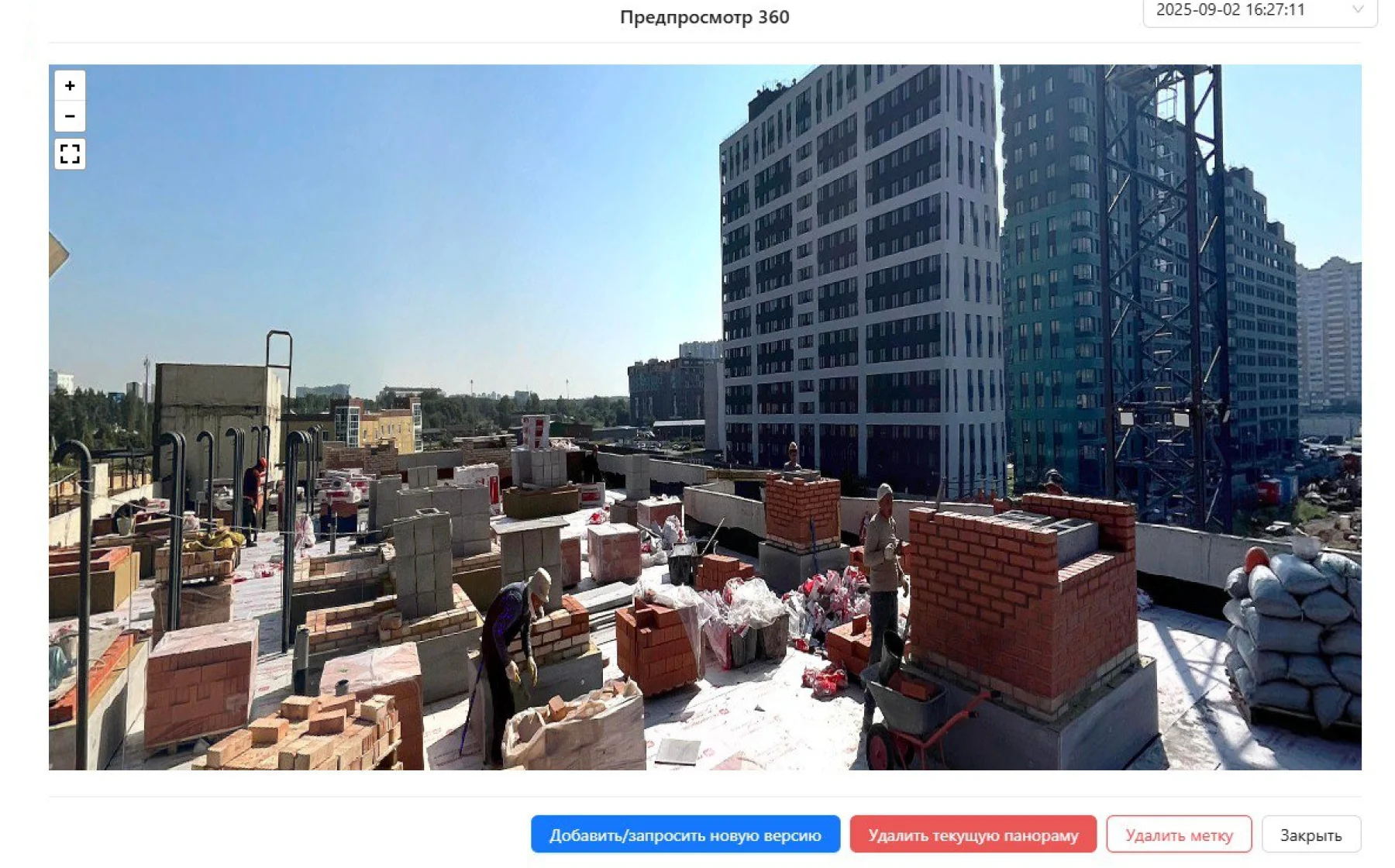
The BIM model opens right in the app: a snag goes on the exact node and shows on both the model and the drawing, and a 360 model snapshot is compared with the site.
What it gives you
The model stops being a presentation picture and becomes a working quality-control tool.
The model in the app
The model opens on a phone or tablet — no third-party viewer needed.
Snags on model nodes
A snag is tied to a place in 3D and shows on the 2D drawing at the same time.
Element data
When you log a defect, the element’s data — wall, column or pipe — comes into the card.
360 photos and model snapshots
Request a site panorama and a 360 snapshot from the model to compare as-built with the design.
Proactive control
Complex nodes are visible in detail; actual positions are checked against the design early.
Design supervision
The designer sees deviations right on the model, without digging through specifications.
Snags right in 3D
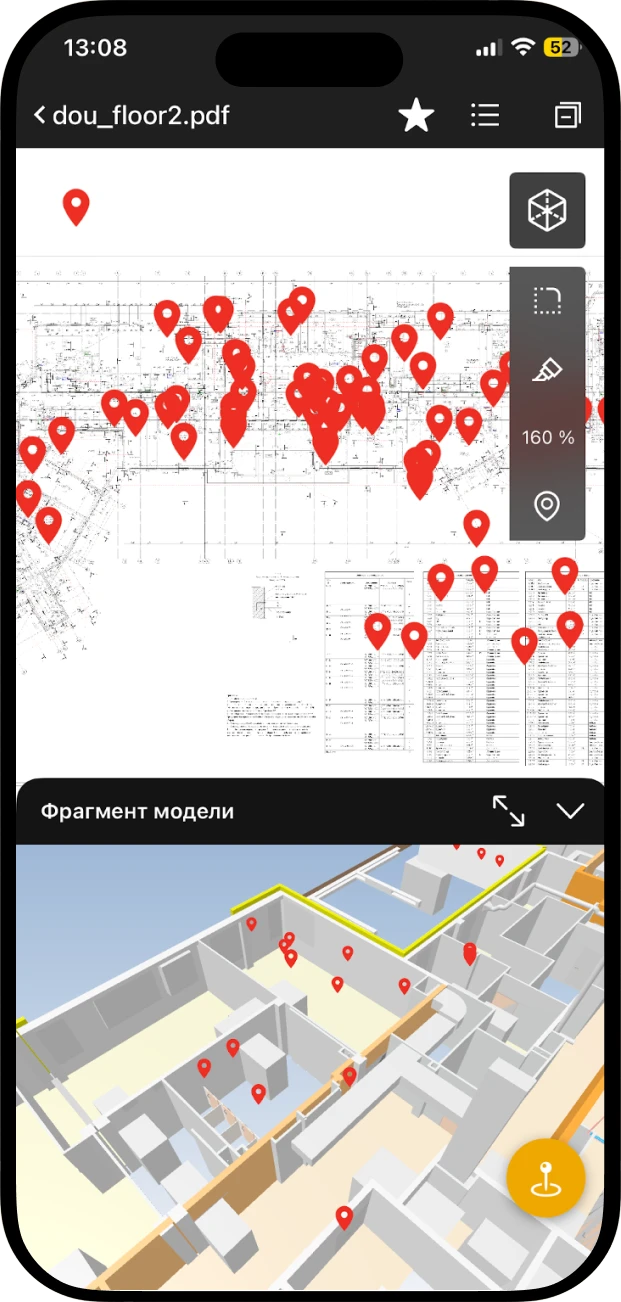
Model and drawing on one screen: pins on the plan, a model fragment below and the snag card on top.
- 1Open a model fragmentBelow the drawing sits a 3D fragment of the same spot. It expands to full screen.
- 2Drop a pinThe snag goes on a specific node and shows on both the model and the 2D drawing.
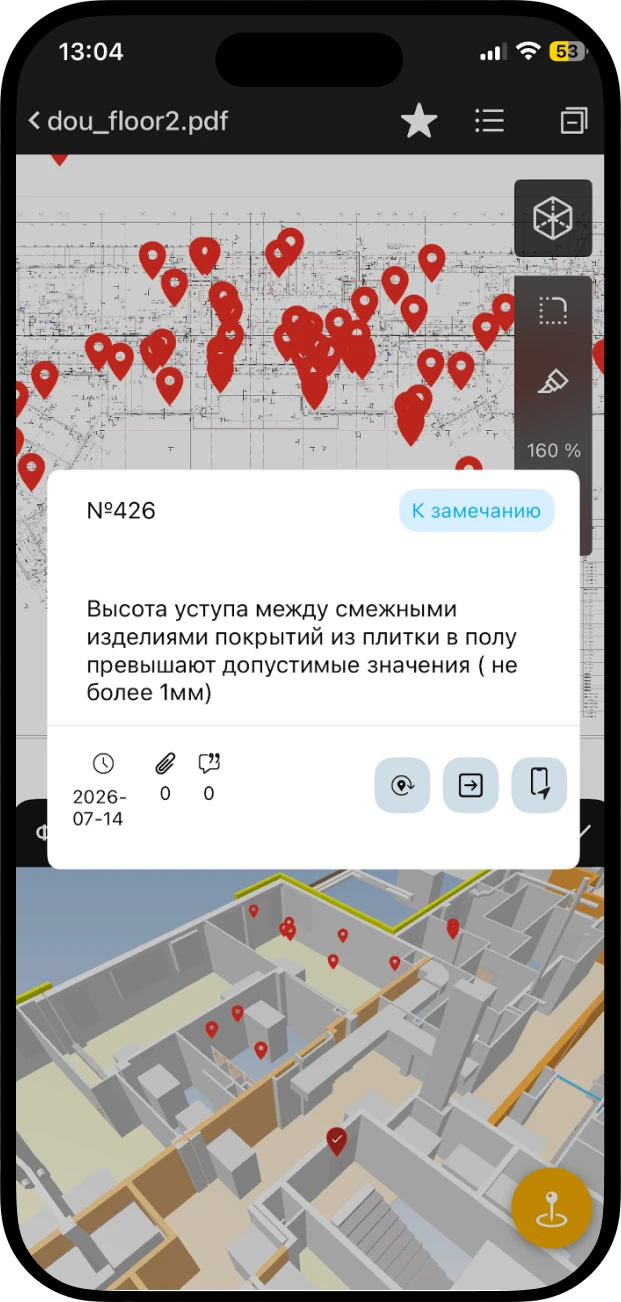
- 3The rest fills inElement data comes into the card by itself — no need to look up the specification.
A 360 snapshot from the model
How to compare the situation on site with the design.
- 1
Request a panorama
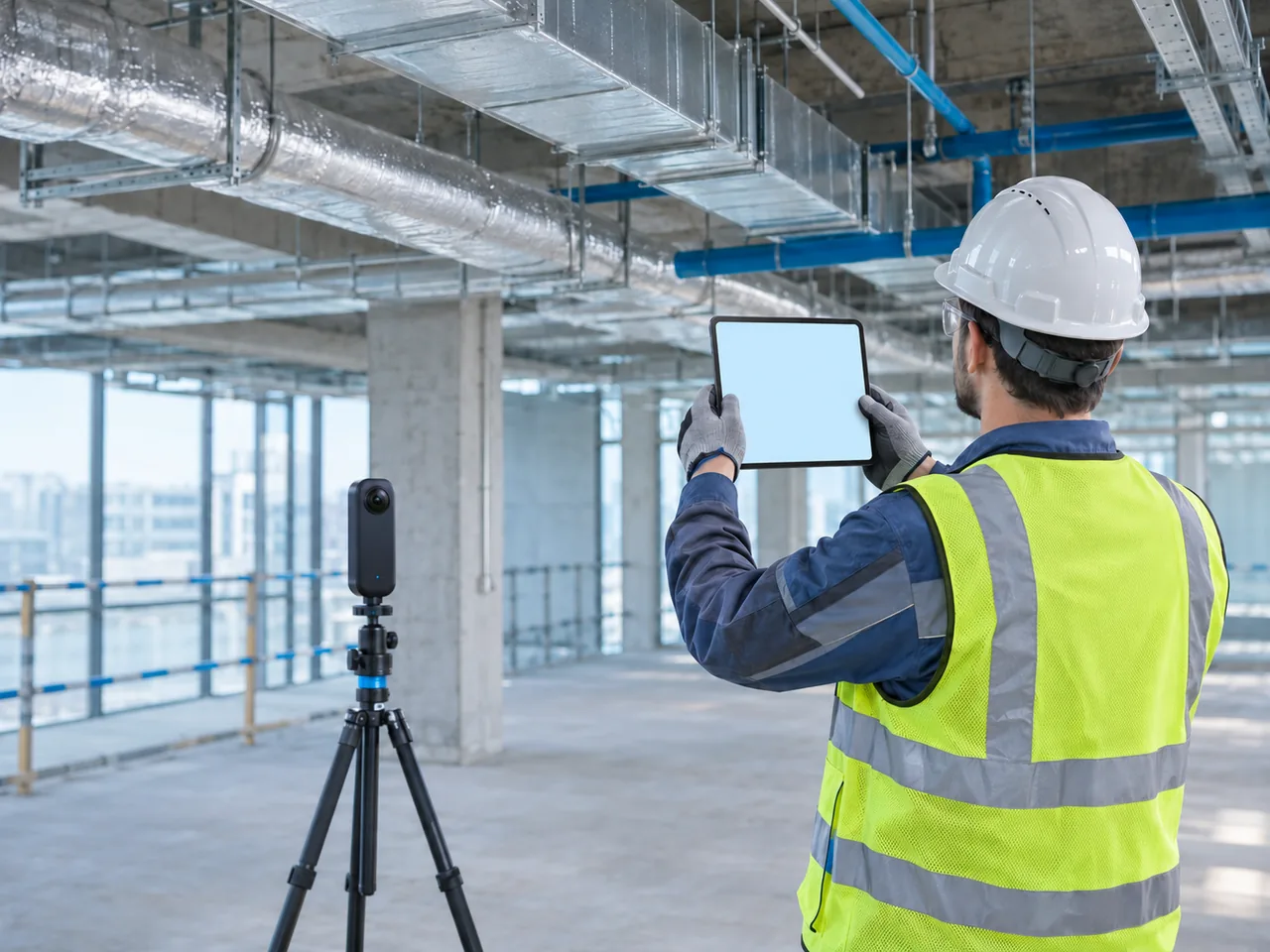
At a point on the plan, request a 360 site photo or a 360 snapshot from the model, with a comment.
- 2
Compare as-built and design
The site panorama and the model view open side by side — differences show at once.
- 3
Decide in the meeting
Disputes and clashes are settled from the picture, not from a description — decisions come faster.
What else is inside
Tools for working with models and the common data environment.
- Construction schedule visualised on the 3D model
- The current issue of drawings via a QR code on site
- Unit layouts for handover inspections
- A robot that processes models and exports them to the CDE
- PDF, DWG and JPEG drawings next to the model
- Pins on 360 panoramas and before/after comparison
We will show snags on the 3D model of your project